Linux Commands Every Developer Should Know
SkillVeris Team
Cloud & Security Team
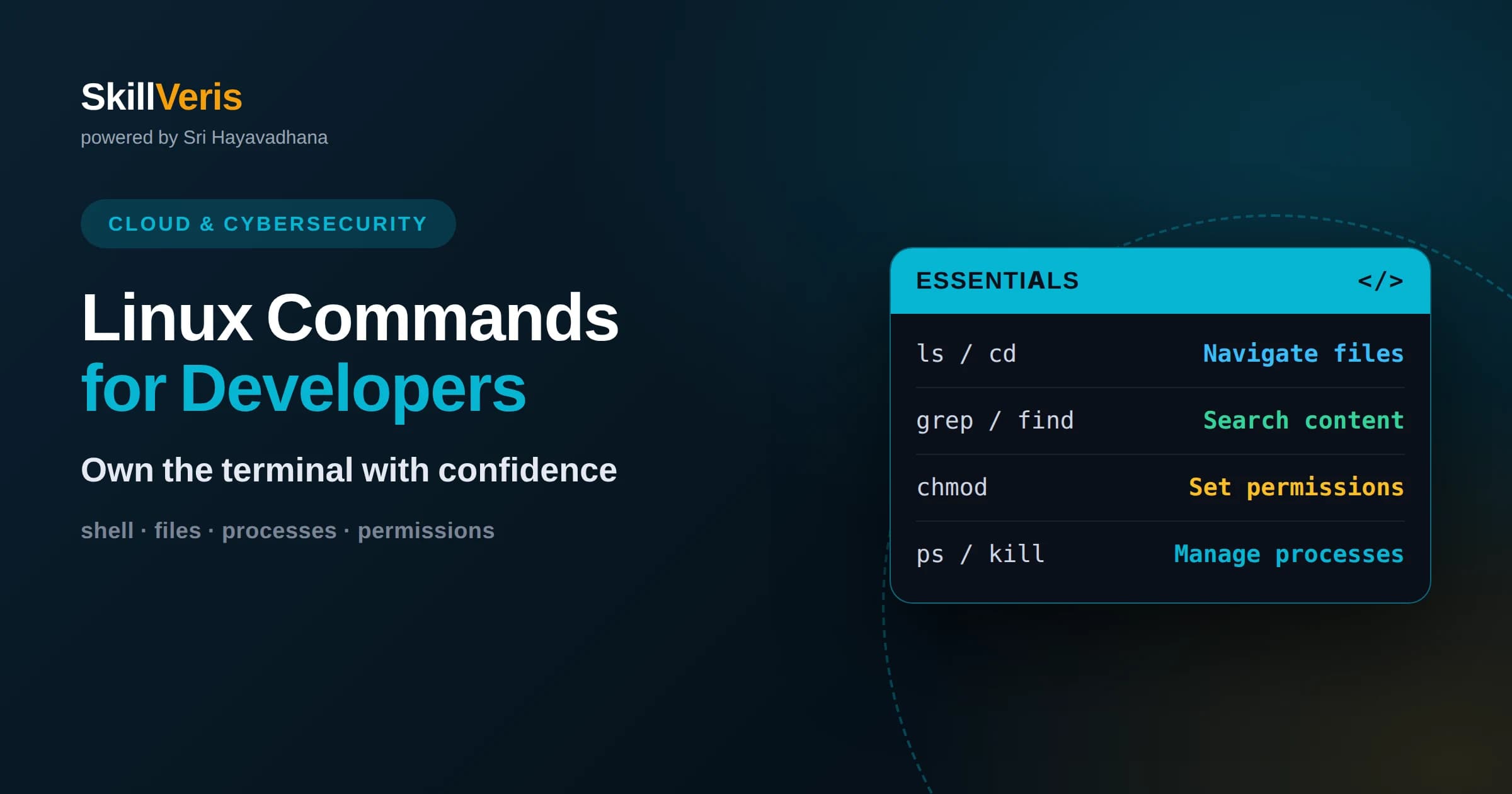
A small set of commands for navigation, files, permissions, and processes covers the vast majority of daily developer work.
In this guide, you'll learn:
- Piping and redirection let you combine simple commands into powerful one-line tools, which is the real superpower of the shell.
- Understanding permissions and users prevents the most common and confusing errors on servers.
- The fastest way to gain fluency is to live in the terminal on small tasks until the commands become muscle memory.
1Why the Command Line Matters
Every developer should know a core set of Linux commands, because servers, containers, and cloud environments overwhelmingly run Linux and are operated through the command line. When you deploy an application, debug a running server, or work inside a container, a graphical interface usually is not available, and the terminal is your only tool. Fluency there is not optional for serious backend, cloud, or DevOps work.
The command line is also faster and more precise than clicking once you know it. A single well-chosen command can accomplish what would take many manual steps, and commands can be combined, saved, and automated. What feels intimidating at first quickly becomes the most efficient way to work.
You do not need to memorize hundreds of commands. A focused set covering navigation, files, text, permissions, processes, and networking handles almost everything you meet day to day. Learn those deeply, understand how they combine, and you can figure out the rest as needed.
3Working With Files and Directories
Creating, copying, moving, and deleting are everyday tasks. The mkdir command makes directories, touch creates empty files, cp copies, mv moves or renames, and rm removes. With these you can reshape a project's structure entirely from the terminal.
A crucial caution accompanies rm: there is no recycle bin at the command line. When you remove something, it is gone. This is why experienced developers pause before running deletion commands, especially with wildcards or the recursive option that removes whole directory trees.
The mv command doubles as both move and rename, since renaming is simply moving a file to a new name in the same place. Copying directories and their contents requires the recursive option, a pattern you will see across many commands that operate on trees of files.
4Viewing and Reading Files
You constantly need to see what is inside files, especially logs and configuration. The cat command prints a whole file, which is fine for small ones. For larger files, a pager like less lets you scroll through comfortably without flooding your screen.
Often you only want part of a file. The head command shows the first lines and tail shows the last, which is perfect for checking the most recent entries in a log. Following a log live as new lines arrive is a common troubleshooting move that tail supports directly.
Reading files well is a core debugging skill. When something breaks on a server, the answer is usually written in a log somewhere, and knowing how to view, scroll, and follow those files turns panic into a calm, methodical investigation.
It is worth getting comfortable inside a pager rather than dumping huge files to the screen. Being able to scroll, jump to the end, and search for a word within a large log keeps you oriented, where cat alone would flood your terminal and lose the very line you were looking for.
5Searching Files and Content
Finding things quickly separates fluent users from frustrated ones. The grep command searches inside files for text matching a pattern, which is invaluable for hunting through logs or code for a specific error, name, or value. It can search many files at once and show you exactly where matches occur.
To find files by name or other attributes, the find command walks a directory tree and locates files matching criteria like name, type, or age. Between grep for content and find for files, you can locate almost anything on a system without a graphical search.
These search tools become far more powerful when combined with patterns and with other commands. Learning even basic pattern matching multiplies what grep can do, letting you match ranges, beginnings of lines, and more precise expressions as your needs grow.
Searching is often the first move in any investigation, so it pays to get comfortable with it early. When a deployment fails or an error appears, being able to sweep through logs and source for the relevant word in seconds is the difference between a quick fix and a long, frustrating hunt.
6Pipes and Redirection
The real power of the command line comes from combining small commands. A pipe sends the output of one command as the input to another, letting you build a chain where each step transforms the data further. This composability is the shell's defining superpower.
For example, you can list files, filter the list for a pattern, and count the results by chaining three simple commands with pipes. Each command does one thing well, and together they solve a specific problem without any custom program.
Redirection sends output to or reads input from files instead of the screen. You can save a command's output to a file, append to it, or feed a file into a command. Combined with pipes, redirection lets you capture results, build reports, and automate tasks with just the built-in tools.
7Understanding Permissions
Linux controls who can read, write, and execute each file through permissions, and misunderstanding them causes some of the most common and confusing errors. Every file has an owner and a group, and permissions specify what the owner, the group, and everyone else may do.
The chmod command changes permissions, and chown changes ownership. When a script will not run or a program cannot write to a directory, the cause is very often a permissions problem. Learning to read the permission listing that ls can show is a key diagnostic skill.
A common example is making a script executable before you can run it. Understanding the three permission types and the three categories of users lets you reason about access confidently, rather than guessing or, worse, opening everything up insecurely to make an error go away.
8Users, Root, and Sudo
Linux is multi-user, and the most powerful account is root, which can do anything. For safety, you normally work as a regular user and elevate to root only when necessary, using sudo to run a single command with administrative privileges.
This separation protects you and the system. Running everything as root means a single mistake or a malicious command can wreck the machine. Using sudo deliberately for specific actions keeps your everyday work safer while still letting you do administrative tasks when needed.
Be thoughtful with sudo. When a command changes system files, installs software, or edits protected directories, it usually needs elevation, and that is exactly when you should slow down and be sure of what you are running. Power and caution belong together.
9Managing Processes
Every running program is a process, and developers regularly need to see what is running and control it. The ps command lists processes, and interactive monitors show live views of what is consuming CPU and memory. These tools reveal whether an application is actually running and how it is behaving.
When a process misbehaves or hangs, the kill command sends it a signal to stop. Understanding that you can ask a process to shut down gracefully or force it to stop is essential for managing servers and recovering from stuck programs.
You will also want to run long tasks in the background, check on them, and bring them to the foreground. Managing processes is central to operating any server, where you must know what is running, why, and how to start or stop it cleanly.
Each process carries an identifier you use to refer to it, and processes relate to one another as parents and children. Understanding this hierarchy helps when a program spawns others, so you can find and stop the right one instead of guessing. On real servers this awareness is what separates confident operation from trial and error.
10Networking and Connectivity
Developers frequently diagnose whether a server is reachable and what it is talking to. Commands to test connectivity, look up addresses, and inspect which ports are listening help you answer why an application cannot reach a database or why a service is not responding.
Transferring data over the network is common too. Tools that fetch content from a URL let you test an API, download a file, or check whether a web service is responding correctly, all from the terminal without any browser.
For working on remote machines, secure shell access is the standard way to log into another server and operate it as if you were there. Since so much development happens on remote servers and cloud instances, being comfortable connecting to and working on them is indispensable.
Working securely on remote machines usually means using keys rather than passwords to prove who you are, which is both safer and more convenient once set up. Getting comfortable with this early removes a common source of friction, because nearly every cloud server you touch will expect you to connect this way.
11Shell Productivity Tricks
A few habits make you dramatically faster. Tab completion finishes file names and commands as you type, saving keystrokes and preventing typos. The command history lets you recall and rerun previous commands instead of retyping them, and you can search back through it quickly.
Wildcards let one command act on many files at once, such as operating on everything with a certain extension. Learning these patterns turns repetitive work into single commands. Small efficiencies like these add up to a very different pace of work over a day.
You can also save frequently used commands as short aliases and combine commands into small scripts. As you grow comfortable, automating repetitive sequences becomes natural, and the terminal turns from a place you tolerate into a place where you are genuinely fast.
12Build Fluency Through Practice
Reading about commands is not enough; fluency comes from use. The best way to learn is to make the terminal your default for real tasks, navigating projects, searching logs, editing files, and managing processes until the commands become muscle memory rather than something you look up.
Start with the navigation and file commands, add searching and pipes, then layer in permissions and processes as you meet the need for them. Each time you solve a real problem at the command line, the knowledge sticks far better than any list you memorize.
SkillVeris offers hands-on, guided practice that puts these commands to work on realistic tasks, so you build genuine confidence at the terminal step by step. Commit to living in the shell for your everyday work, and within weeks the commands that once felt cryptic will feel like second nature.
Keep a small personal cheat sheet of the commands and combinations you find yourself reaching for, and add to it as you learn. Over time it becomes both a quick reference and a record of your growing fluency, and you will notice you consult it less and less as the terminal becomes a place you truly own.
Related Reading
Get The Print Version
Download a PDF of this article for offline reading.
About the Publisher
SkillVeris Team
Cloud & Security Team
Our cloud and security experts break down complex infrastructure topics into practical, beginner-friendly guides.
View all postsRelated Posts
Never miss an update
Get the latest tutorials and guides delivered to your inbox.
No spam. Unsubscribe anytime.