Git for Beginners: A Practical Guide
SkillVeris Team
Engineering Team
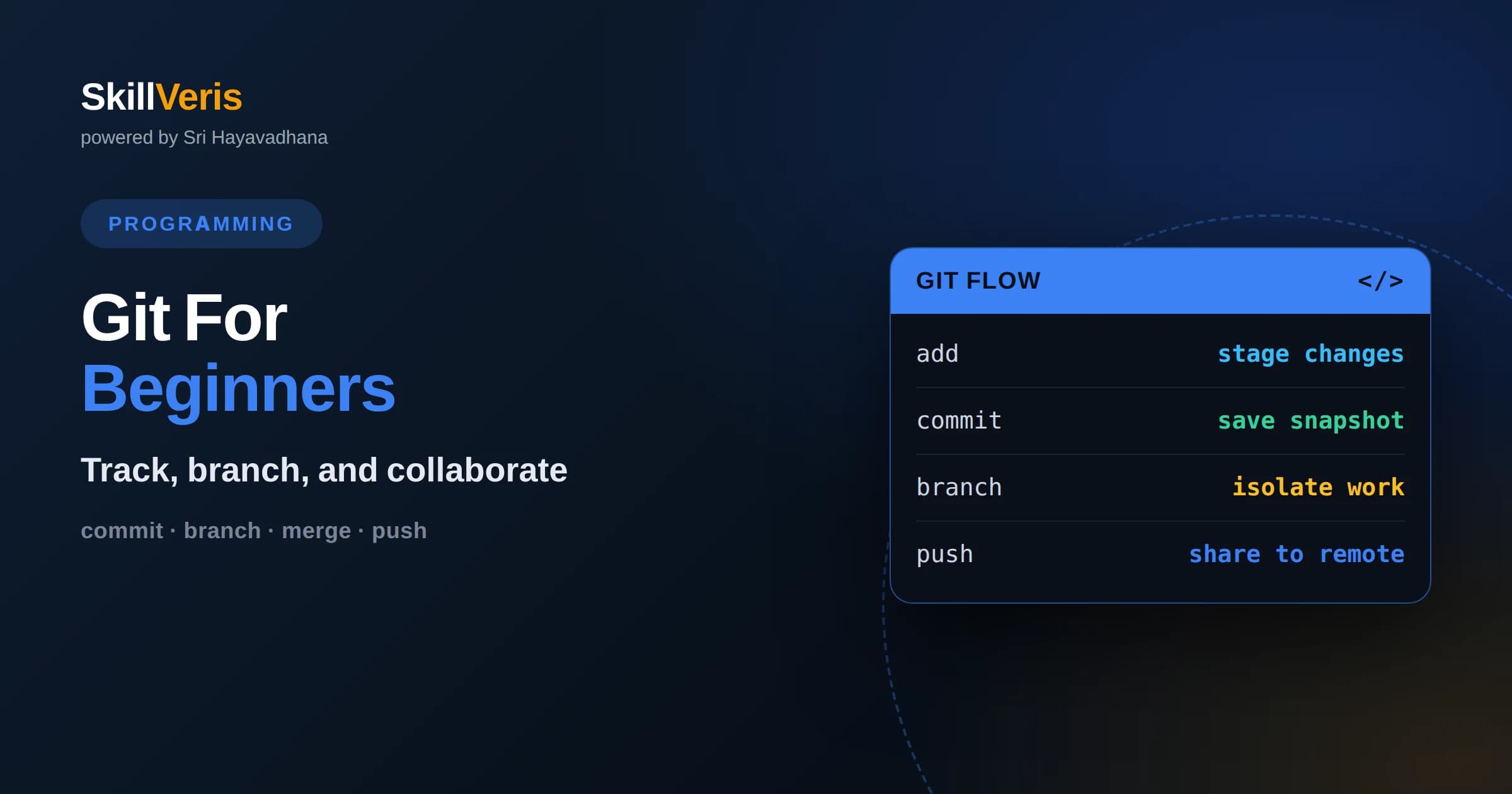
Git records snapshots of your project as commits, giving you a complete history you can review, revert to, or branch from.
In this guide, you'll learn:
- The everyday workflow is edit, stage with add, save with commit, and share with push, all built on a few memorable commands.
- Branches let you develop features in isolation and merge them back, which is the heart of safe collaboration.
- Understanding the difference between your working directory, the staging area, and the repository clarifies what every Git command actually does.
1What Is Git
Git is a version control system that records the history of changes to your files so you can track what changed, when, and why. Instead of keeping folders named final, final-2, and really-final, you keep one project and let Git remember every version for you. You can review past states, undo mistakes, and work on new ideas without fear of breaking what already works.
Git is distributed, meaning every copy of a project contains its full history rather than depending on a central server for the record. This makes it fast, lets you work offline, and provides natural backups since the history lives on every machine that has a clone. It has become the standard tool for managing source code across the software industry.
At its core, Git stores snapshots of your project at moments you choose, called commits. Each commit captures the state of your files and links to the one before it, forming a connected history you can navigate. Grasping this snapshot model makes the rest of Git far easier to understand.
2Why Version Control Matters
Without version control, collaborating on code is chaotic and risky. Two people editing the same file can overwrite each other's work, and reverting a bad change means remembering exactly what you altered. Version control removes this pain by tracking every change and letting multiple people work together without stepping on one another.
Even working alone, version control is transformative. You can experiment boldly, knowing you can always return to a working state. You can see exactly what you changed between versions, which makes finding and fixing bugs far easier. The history becomes a searchable record of how and why your project evolved.
Git also underpins nearly all modern open-source and professional software development. Learning it is not optional for anyone who wants to contribute to real projects or work on a team. The good news is that the daily workflow rests on just a handful of commands, and once those become habit, the rest of Git's depth is there when you need it but never in your way when you do not.
3The Three Areas Of Git
Git organizes your work into three conceptual areas, and understanding them clears up most early confusion. The working directory is the actual files you edit on disk. The staging area, also called the index, is a holding zone where you gather the specific changes you want in your next commit. The repository is the permanent history of commits Git has stored.
This design gives you fine control. You edit freely in the working directory, then deliberately choose which changes to stage, then commit the staged changes as a snapshot in the repository. Separating staging from committing lets you craft focused, meaningful commits rather than dumping every unrelated change together.
Almost every basic Git command moves changes between these three areas. When a command confuses you, ask which areas it touches and in which direction. That mental model turns a pile of commands into a coherent system.
4Getting Started With A Repository
To start tracking a project, you initialize a repository in its folder, which creates a hidden directory where Git stores all its history and configuration. Alternatively, you clone an existing repository from a remote host, which downloads the entire project along with its full history to your machine.
Before your first commit, it is worth setting your name and email so Git can label your commits with authorship. This one-time configuration ensures the history clearly records who made each change, which matters enormously when collaborating. A file called gitignore also lets you tell Git which files to leave untracked, such as build outputs and secrets.
5The Core Everyday Workflow
The daily rhythm of Git comes down to a short cycle. You edit files in your working directory. You stage the changes you want to record using the add command, which moves them into the staging area. You commit those staged changes with a descriptive message, creating a permanent snapshot. When ready, you push your commits to a shared remote so others can see them.
Between these steps, the status command is your best friend. It shows which files have changed, which are staged, and which are untracked, so you always know where you stand. Running status frequently removes uncertainty and prevents the common beginner anxiety of not knowing what Git is about to do.
Writing good commit messages is a skill worth cultivating early. A clear message explains what changed and why, so that you or a teammate reading the history months later can understand the reasoning without digging through the code. Small, focused commits with meaningful messages make a history that is genuinely useful.
6Understanding Commits
A commit is a saved snapshot of your staged changes, stamped with an author, a timestamp, a message, and a unique identifier. Each commit points back to its parent, so the chain of commits forms your project's history. You can view this history with the log command, which lists commits from newest to oldest.
Because each commit is a complete recorded state, you can return to any past commit to see exactly how the project looked at that moment. This is what makes experimentation safe. If a new direction does not work out, the previous good commit is still there, intact and ready to return to.
You can also compare any two commits to see precisely what changed between them, line by line. This diff view is one of Git's most useful everyday features, letting you review your own work before sharing it and letting teammates understand exactly what a change does. Reviewing diffs before committing is a habit that catches mistakes early and keeps your history clean and intentional.
7Branching And Why It Matters
A branch is an independent line of development. When you create a branch, you get a separate space to work on a feature or fix without disturbing the main line of code. The default branch is often called main, and you branch off it to build something new, keeping the stable version untouched while you experiment.
Branching is central to how teams work with Git. Each person or feature gets its own branch, so many changes can progress in parallel without interfering. Switching between branches instantly changes your working directory to reflect that branch's state, letting you juggle several efforts cleanly.
Branches are cheap and fast in Git, which encourages creating them liberally. A common habit is to make a fresh branch for every task, however small, so the main branch always stays in a known-good state and your work stays organized around clear units.
8Merging Your Work
Once a branch's work is complete and tested, you merge it back into the main branch, combining the two histories. When the changes do not overlap, Git merges automatically. When two branches modify the same lines in incompatible ways, Git reports a merge conflict and asks you to decide how to reconcile them.
Merge conflicts sound intimidating but are routine. Git marks the conflicting regions in the affected files, and you edit them to the correct final result, then mark the conflict resolved and complete the merge. Learning to handle conflicts calmly is a rite of passage that quickly becomes ordinary with practice.
9Working With Remote Repositories
A remote is a copy of your repository hosted elsewhere, typically on a platform that teams use to collaborate. You push your local commits to the remote to share them, and you pull commits others have pushed to bring your local copy up to date. This exchange keeps everyone's histories synchronized.
A typical collaboration flow is to pull the latest changes before you start, work on a branch, push that branch, and then propose merging it through a review process. This review step, where teammates examine your changes before they join the main branch, is where much of the quality control and knowledge sharing in modern teams happens.
It helps to keep the distinction between local and remote clear. Commits you make live only on your machine until you push them, and changes others make are invisible to you until you pull. Git never syncs automatically; you are always in control of when to share and when to receive. Understanding this manual, deliberate exchange dispels a great deal of the confusion beginners feel about where their work actually lives.
10Undoing Mistakes Safely
One of Git's greatest gifts is the ability to undo. You can discard uncommitted edits to return a file to its last committed state, unstage changes you staged by mistake, or amend the most recent commit to fix a message or include a forgotten file. For changes already committed, you can create a new commit that reverses an earlier one, preserving history while cancelling its effect.
Because Git records so much, recovery is usually possible even after apparent disasters. Learning a handful of these undo commands early removes the fear that stops beginners from experimenting. Knowing you can almost always get back to safety is what makes Git feel liberating rather than intimidating.
11Building Good Git Habits
A few habits make Git far more pleasant. Commit often and in small, logical units so each commit tells a clear story. Write descriptive messages that explain the why, not just the what. Pull before you start working to reduce conflicts, and use a branch for each distinct task to keep the main branch stable.
Check status and review your changes before committing so you know exactly what you are recording. Keep secrets and generated files out of the repository with a gitignore file. These habits cost little effort and pay back enormously as projects and teams grow, keeping your history clean and trustworthy.
12Practice On SkillVeris
Git is best learned by doing. Reading about commits and branches only takes you so far; the concepts truly land when you initialize a repository, make commits, create a branch, cause a merge conflict on purpose, and resolve it. That hands-on loop builds the confidence to use Git fearlessly in real projects.
SkillVeris provides guided Git exercises that walk you through the everyday workflow and the collaboration patterns teams rely on, in a safe environment where mistakes cost nothing. Practice the core cycle until it is automatic, then branch, merge, and push, and you will be ready to contribute to real codebases with confidence.
Related Reading
Get The Print Version
Download a PDF of this article for offline reading.
About the Publisher
SkillVeris Team
Engineering Team
Our engineering writers turn abstract code concepts into hands-on, project-driven learning experiences.
View all postsRelated Posts
Never miss an update
Get the latest tutorials and guides delivered to your inbox.
No spam. Unsubscribe anytime.