Terraform Basics: Infrastructure as Code on AWS
SkillVeris Team
Cloud & Security Team
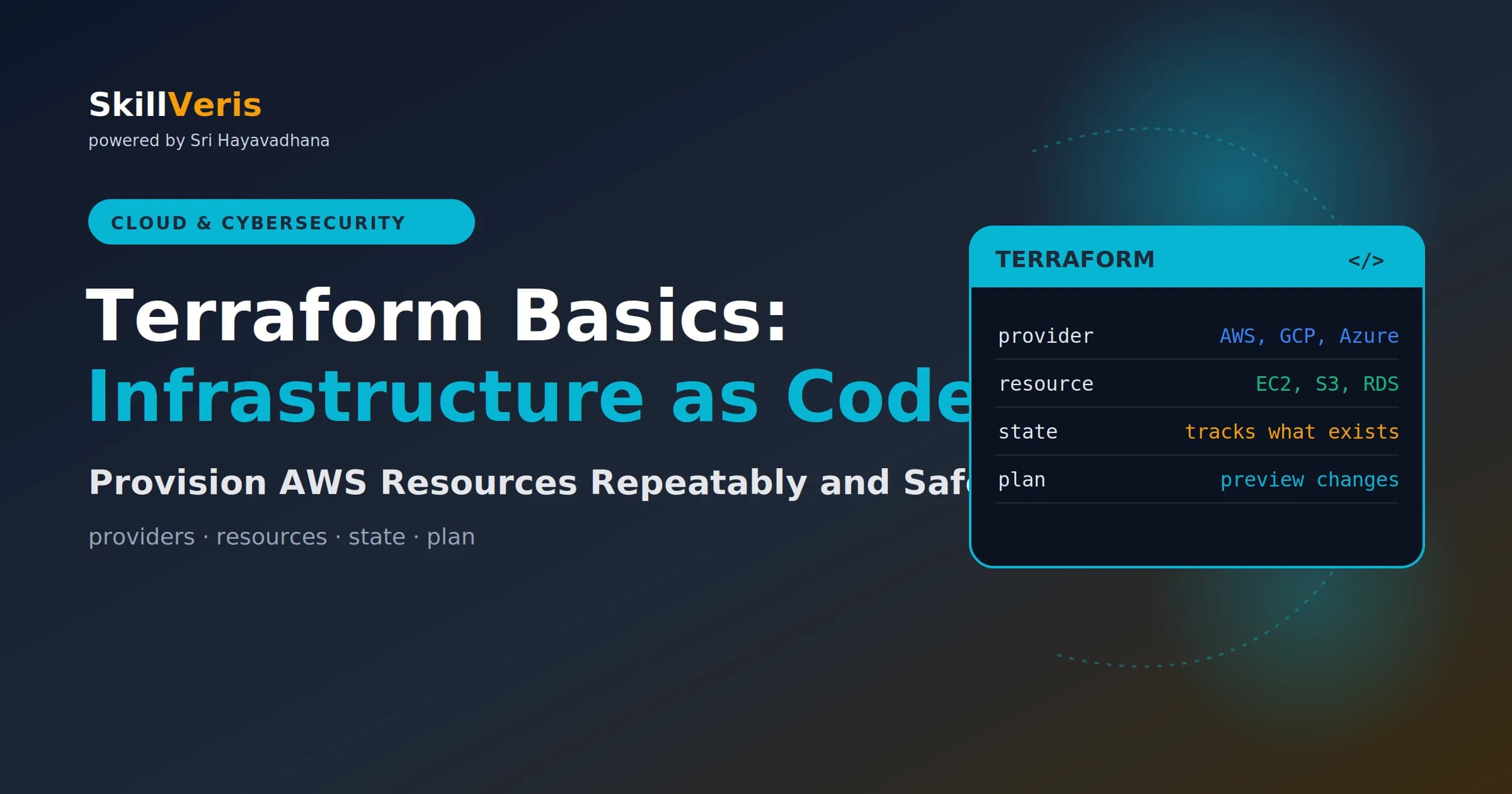
Terraform turns cloud infrastructure into code: declare resources in HCL, preview with terraform plan, then make it real with terraform apply.
In this guide, you'll learn:
- The state file tracks what Terraform has created so it can plan incremental updates instead of recreating resources.
- Store state remotely in S3 with DynamoDB locking so teams can collaborate without clobbering each other's changes.
- Variables and outputs make configs reusable across environments, while modules package patterns for reuse.
- A complete AWS example can range from a single S3 bucket to a full web server with a security group and user data.
1What Is Infrastructure as Code?
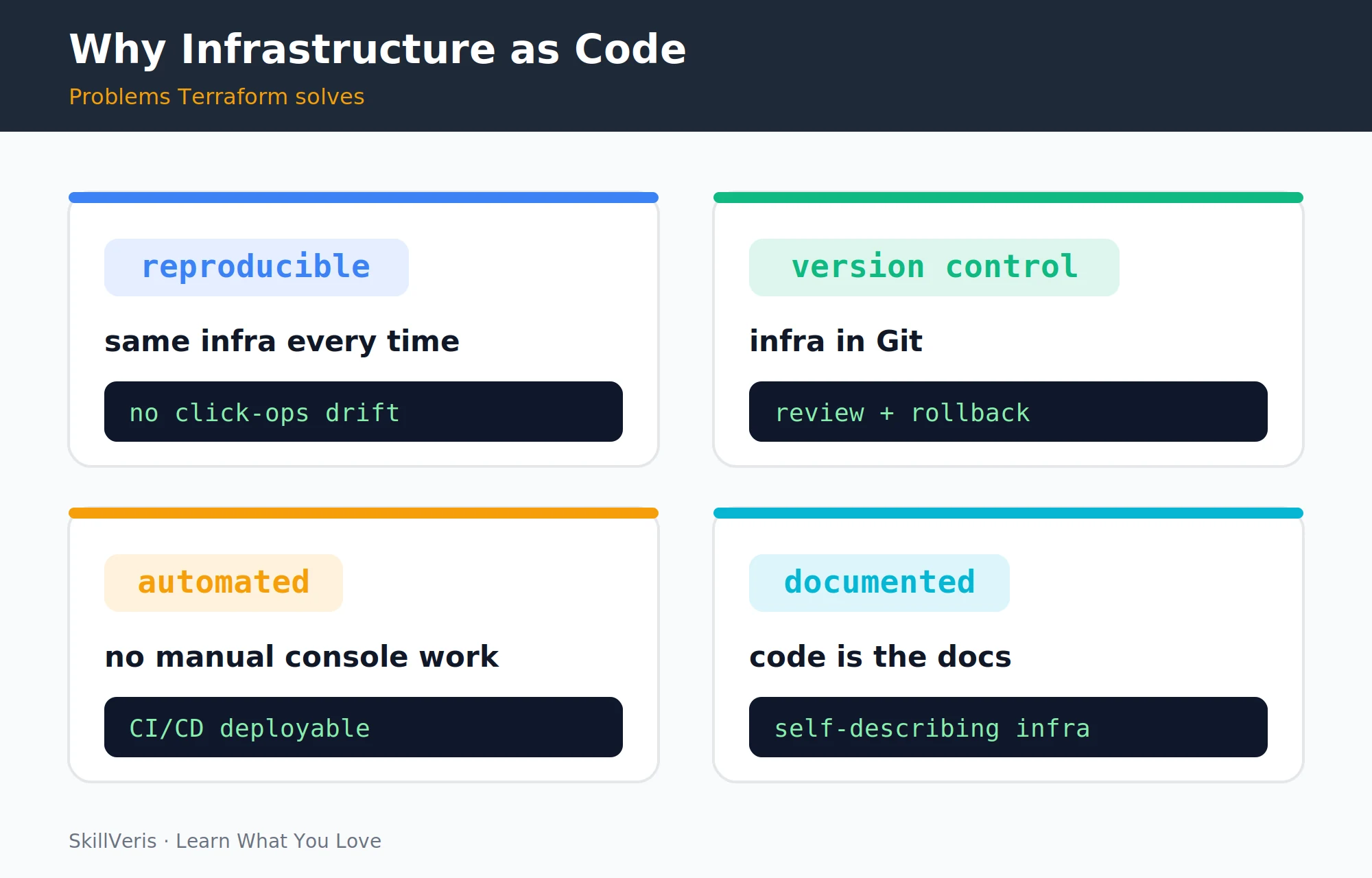
Infrastructure as Code (IaC) means defining your cloud resources — servers, databases, networks, storage — in code files instead of clicking through a cloud console. The benefits are transformative: your infrastructure is reproducible (run it again, get identical results), version-controlled (every change tracked in Git with a reviewer), automated (deploy from CI/CD with no manual steps), and self-documenting (the code describes exactly what exists).
Terraform is the most widely adopted IaC tool, supporting AWS, GCP, Azure, and 1,700+ other providers with a single consistent language (HCL — HashiCorp Configuration Language).
2Installing Terraform
Terraform installs cleanly on every major platform. Pick the command set for your operating system, then verify the install.
Install Commands
Install via Homebrew on macOS, the HashiCorp apt repository on Linux, or Chocolatey on Windows.
# macOS (Homebrew)
brew tap hashicorp/tap
brew install hashicorp/tap/terraform
# Linux
wget -O- https://apt.releases.hashicorp.com/gpg | sudo gpg --dearmor -o /usr/share/keyrings/hashicorp.gpg
echo "deb [signed-by=/usr/share/keyrings/hashicorp.gpg] https://apt.releases.hashicorp.com $(lsb_release -cs) main" | sudo tee /etc/apt/sources.list.d/hashicorp.list
sudo apt update && sudo apt install terraform
# Windows: use Chocolatey
choco install terraform
terraform version # verify installation3Core Concepts
A handful of building blocks underpin every Terraform configuration. Understanding them makes the rest of the tool intuitive.
- Provider: a plugin that talks to a cloud API (AWS, GCP, Azure, GitHub, Cloudflare). Declared in your config; downloaded by terraform init.
- Resource: a single infrastructure component (an EC2 instance, an S3 bucket, a VPC). The main building block of Terraform configs.
- Data source: reads existing infrastructure (not managed by this Terraform config) to use its values.
- Variable: an input parameter making configs reusable across environments.
- Output: a value exported from the config (e.g. the public IP of an EC2 instance).
- State: a JSON file tracking what Terraform has created so it can plan incremental updates.
- Module: a reusable group of resources packaged together.
4Your First Terraform File
A first configuration declares the AWS provider, creates an S3 bucket, and blocks all public access to it.
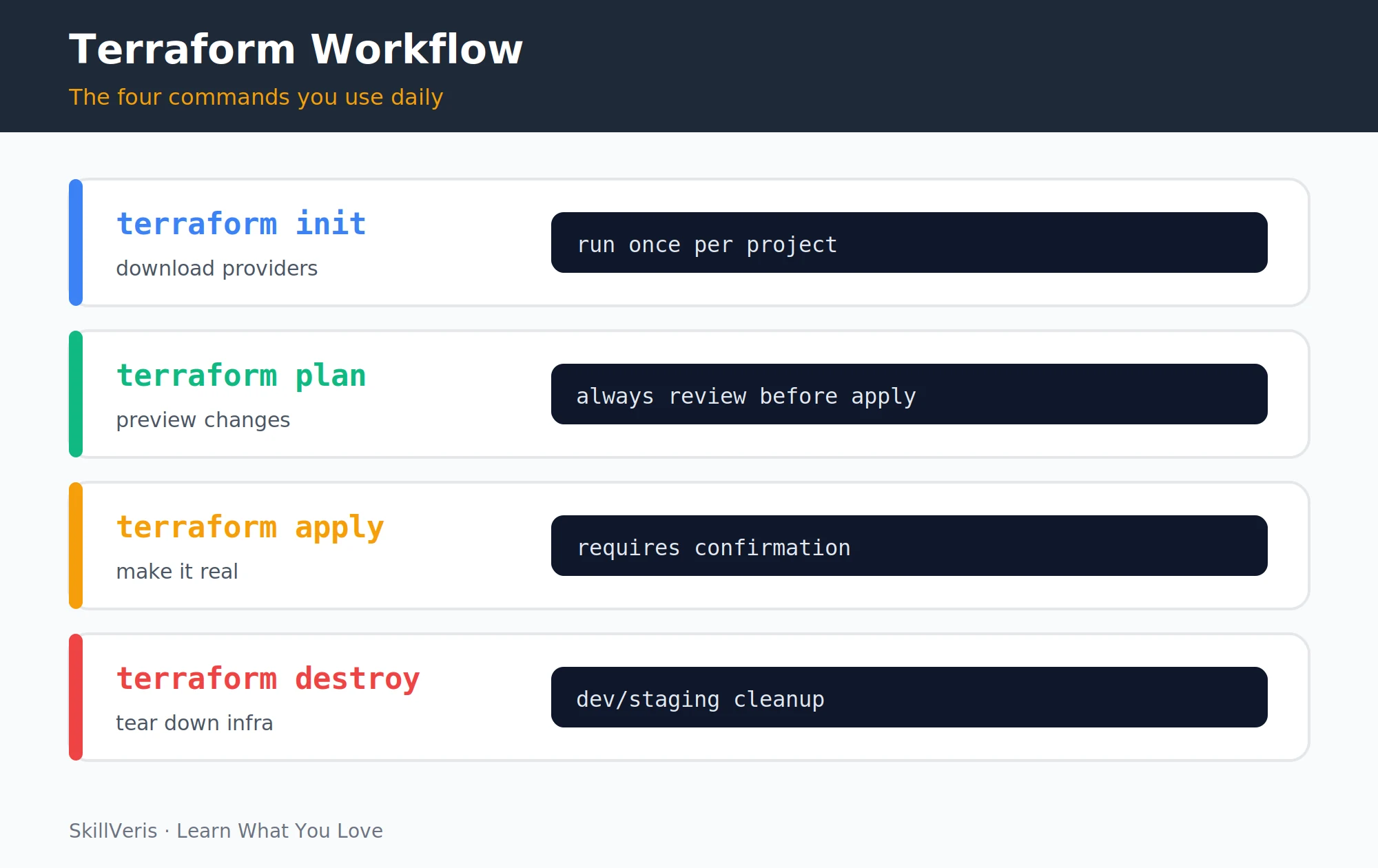
With the file written, the standard workflow is init, plan, apply, and — when you're done — destroy.
main.tf
Declare the required AWS provider, then define an S3 bucket and a public access block resource.
# main.tf
terraform {
  required_providers {
    aws = {
      source  = "hashicorp/aws"
      version = "~> 5.0"
    }
  }
}
provider "aws" {
  region = "ap-south-1" # Mumbai region
}
# Create an S3 bucket
resource "aws_s3_bucket" "blog_assets" {
  bucket = "skillveris-blog-assets-2026"
  tags = {
    Environment = "production"
    Project     = "SkillVeris"
  }
}
# Block all public access
resource "aws_s3_bucket_public_access_block" "blog_assets" {
  bucket                  = aws_s3_bucket.blog_assets.id
  block_public_acls       = true
  block_public_policy     = true
  ignore_public_acls      = true
  restrict_public_buckets = true
}
Workflow
The core lifecycle commands download the provider, preview changes, apply them, and tear them down.
terraform init    # download AWS provider
terraform plan    # preview: "1 to add, 0 to change, 0 to destroy"
terraform apply   # create the resources (type "yes" to confirm)
terraform destroy # tear everything down (dev/test environments)5Variables and Outputs
Variables turn hardcoded values into reusable inputs, and outputs expose useful values like a bucket name or instance IP. You can override variables on the command line or pass a .tfvars file.
variables.tf
Declare typed input variables with descriptions and defaults.
# variables.tf
variable "environment" {
  description = "Deployment environment"
  type        = string
  default     = "dev"
}
variable "region" {
  description = "AWS region"
  type        = string
  default     = "ap-south-1"
}
variable "instance_type" {
  description = "EC2 instance type"
  type        = string
  default     = "t3.micro"
}
outputs.tf
Export the bucket name and ARN so other configs or operators can read them.
# outputs.tf
output "bucket_name" {
  description = "Name of the created S3 bucket"
  value       = aws_s3_bucket.blog_assets.bucket
}
output "bucket_arn" {
  value = aws_s3_bucket.blog_assets.arn
}
Overriding Variables
Override variables inline at apply time, or keep them in a .tfvars file (never commit secrets).
# Override variables at apply time
terraform apply -var="environment=prod" -var="instance_type=t3.small"
# Or use a .tfvars file (never commit secrets)
# prod.tfvars:
#   environment   = "prod"
#   instance_type = "t3.small"
terraform apply -var-file="prod.tfvars"6Deploying an EC2 Instance
A complete EC2 setup pairs a security group with an instance. The security group allows HTTP from anywhere and SSH only from your IP, while the instance bootstraps nginx via user data and exports its public IP.
EC2 with Security Group
Define the security group, the instance, and an output for the public IP.
# Complete EC2 setup with security group
resource "aws_security_group" "web" {
  name        = "web-sg-${var.environment}"
  description = "Allow HTTP and SSH"
  ingress {
    from_port   = 80
    to_port     = 80
    protocol    = "tcp"
    cidr_blocks = ["0.0.0.0/0"]
  }
  ingress {
    from_port   = 22
    to_port     = 22
    protocol    = "tcp"
    cidr_blocks = ["YOUR_IP/32"] # restrict SSH to your IP
  }
  egress {
    from_port   = 0
    to_port     = 0
    protocol    = "-1"
    cidr_blocks = ["0.0.0.0/0"]
  }
}
resource "aws_instance" "web" {
  ami                    = "ami-0f5ee92e2d63afc18" # Ubuntu 22.04 ap-south-1
  instance_type          = var.instance_type
  vpc_security_group_ids = [aws_security_group.web.id]
  key_name               = "my-keypair"
  user_data = <<-EOF
    #!/bin/bash
    apt-get update -y
    apt-get install -y nginx
    echo "<h1>Deployed by Terraform</h1>" > /var/www/html/index.html
    systemctl start nginx
  EOF
  tags = {
    Name        = "web-${var.environment}"
    Environment = var.environment
  }
}
output "public_ip" {
  value = aws_instance.web.public_ip
}7State Management
Terraform state is a JSON file (terraform.tfstate) that maps your config to real infrastructure. It's how Terraform knows what exists and what needs to change. Without state, every terraform apply would create new resources instead of updating existing ones.
- Never edit the state file manually.
- Never commit terraform.tfstate to Git (it contains secrets). Add to .gitignore.
- For teams, store state remotely (see the next section).
- Use terraform state list to see what's in state; terraform state show resource for details.
8Remote State with S3
Remote state enables team collaboration: everyone reads and writes the same state, and DynamoDB locking prevents two people from running terraform apply simultaneously. You bootstrap the backing S3 bucket and DynamoDB table once, then point Terraform at them.
backend.tf
Configure the S3 backend with DynamoDB locking and encryption, after creating the bucket and table.
# backend.tf — store state in S3 with DynamoDB locking
terraform {
  backend "s3" {
    bucket         = "my-terraform-state-bucket"
    key            = "skillveris/production/terraform.tfstate"
    region         = "ap-south-1"
    dynamodb_table = "terraform-state-lock" # prevents concurrent applies
    encrypt        = true
  }
}
# Create the S3 bucket and DynamoDB table first (bootstrap)
# aws s3 mb s3://my-terraform-state-bucket --region ap-south-1
# aws dynamodb create-table --table-name terraform-state-lock ...9Modules: Reusable Infrastructure
A module packages a group of resources so you can call it repeatedly with different inputs. Define the module once, then instantiate it for staging and production and read back its outputs.
Defining and Calling a Module
Define the web-server module, call it twice from the root config, and expose each instance's public IP.
# modules/web-server/main.tf
variable "environment" {}
variable "instance_type" { default = "t3.micro" }
resource "aws_instance" "this" {
  ami           = data.aws_ami.ubuntu.id
  instance_type = var.instance_type
  tags          = { Environment = var.environment }
}
output "public_ip" { value = aws_instance.this.public_ip }
# Call the module from root main.tf
module "staging_web" {
  source        = "./modules/web-server"
  environment   = "staging"
  instance_type = "t3.micro"
}
module "prod_web" {
  source        = "./modules/web-server"
  environment   = "production"
  instance_type = "t3.small"
}
# Access module outputs
output "staging_ip" { value = module.staging_web.public_ip }
output "prod_ip" { value = module.prod_web.public_ip }10Workspaces: Multiple Environments
Workspaces create separate state files per environment, letting you reuse one config across staging and production. An alternative is separate directories (staging/ and production/), each with its own .tfvars and backend config. For complex setups, separate directories are often cleaner than workspaces.
Workspace Commands
Create, list, and select workspaces, and reference the active one inside resources.
# Workspaces let you use the same config for different environments
terraform workspace new staging
terraform workspace new production
terraform workspace list   # shows all workspaces
terraform workspace select staging
# Use workspace name in resources
# resource "aws_instance" "web" {
#   tags = { Environment = terraform.workspace }
# }11Best Practices
A short set of disciplines keeps Terraform projects safe, predictable, and easy to debug.
- Run terraform plan before every apply: review exactly what will change. Never apply blindly.
- Remote state for teams: always use S3 + DynamoDB locking when more than one person applies changes.
- Pin provider versions: use version = "~> 5.0" to prevent surprise breaking changes from provider upgrades.
- Tag all resources: include Environment, Project, and Owner tags on every resource for cost allocation and debugging.
- Never hardcode secrets: use variables for sensitive values, and pass them via environment variables or a secrets manager, never in committed .tf files.
- Format and validate: terraform fmt formats code; terraform validate checks for errors before plan.
12Key Takeaways
The essentials of Terraform distill into a few core principles.
- Terraform config describes the desired state; terraform apply converges real infrastructure to that state.
- Always terraform plan before apply — review every change before making it real.
- Store state remotely (S3 + DynamoDB) for team use; never commit state files to Git.
- Use variables and modules to avoid repeating infrastructure patterns.
- Tag everything; use workspaces or separate directories for multiple environments.
13What to Learn Next
Extend your IaC knowledge with these related topics.
- AWS for Beginners — understand the resources Terraform provisions.
- CI/CD Explained — run terraform apply automatically in a pipeline.
- Kubernetes Explained — provision EKS clusters with Terraform.
14Frequently Asked Questions
Is Terraform the same as AWS CloudFormation? Both are IaC tools, but Terraform is cloud-agnostic (works with AWS, GCP, Azure, and 1,700+ other providers) while CloudFormation is AWS-only. Terraform uses HCL (cleaner syntax); CloudFormation uses JSON/YAML. Terraform has a larger community and ecosystem of modules. If you're AWS-only and already use AWS heavily, CloudFormation is viable; for multi-cloud or simpler syntax, Terraform is the industry standard.
What happens if someone manually changes a resource outside Terraform? The state file no longer matches reality. The next terraform plan will show a diff. Running terraform apply will revert the manual change to match the config. To import a manually created resource into Terraform state: terraform import resource_type.resource_name resource_id. This is why "click-ops" (manual console changes) and Terraform don't mix well — pick one approach per resource.
Should I use Terraform or Pulumi? Terraform uses HCL (a domain-specific configuration language); Pulumi uses general-purpose languages (Python, TypeScript, Go). Terraform is more widely adopted and has more community modules. Pulumi is more flexible for complex logic but has a steeper learning curve for infrastructure teams unfamiliar with software development practices. For most teams starting IaC, Terraform is the safer choice; Pulumi is valuable when your infrastructure logic is genuinely complex enough to benefit from a full programming language.
How do I handle sensitive values (passwords, API keys) in Terraform? Never put them in .tf files or .tfvars files committed to Git. Options: mark the variable as sensitive = true (redacts from plan output), pass via environment variables (TF_VAR_db_password=secret), use AWS Secrets Manager or HashiCorp Vault data sources to fetch secrets at apply time, or use SOPS to encrypt .tfvars files committed to Git.
Related Reading
Get The Print Version
Download a PDF of this article for offline reading.
About the Publisher
SkillVeris Team
Cloud & Security Team
Our cloud and security experts break down complex infrastructure topics into practical, beginner-friendly guides.
View all postsRelated Posts
Never miss an update
Get the latest tutorials and guides delivered to your inbox.
No spam. Unsubscribe anytime.