Git and GitHub for Beginners: The Complete Guide
SkillVeris Team
Engineering Team
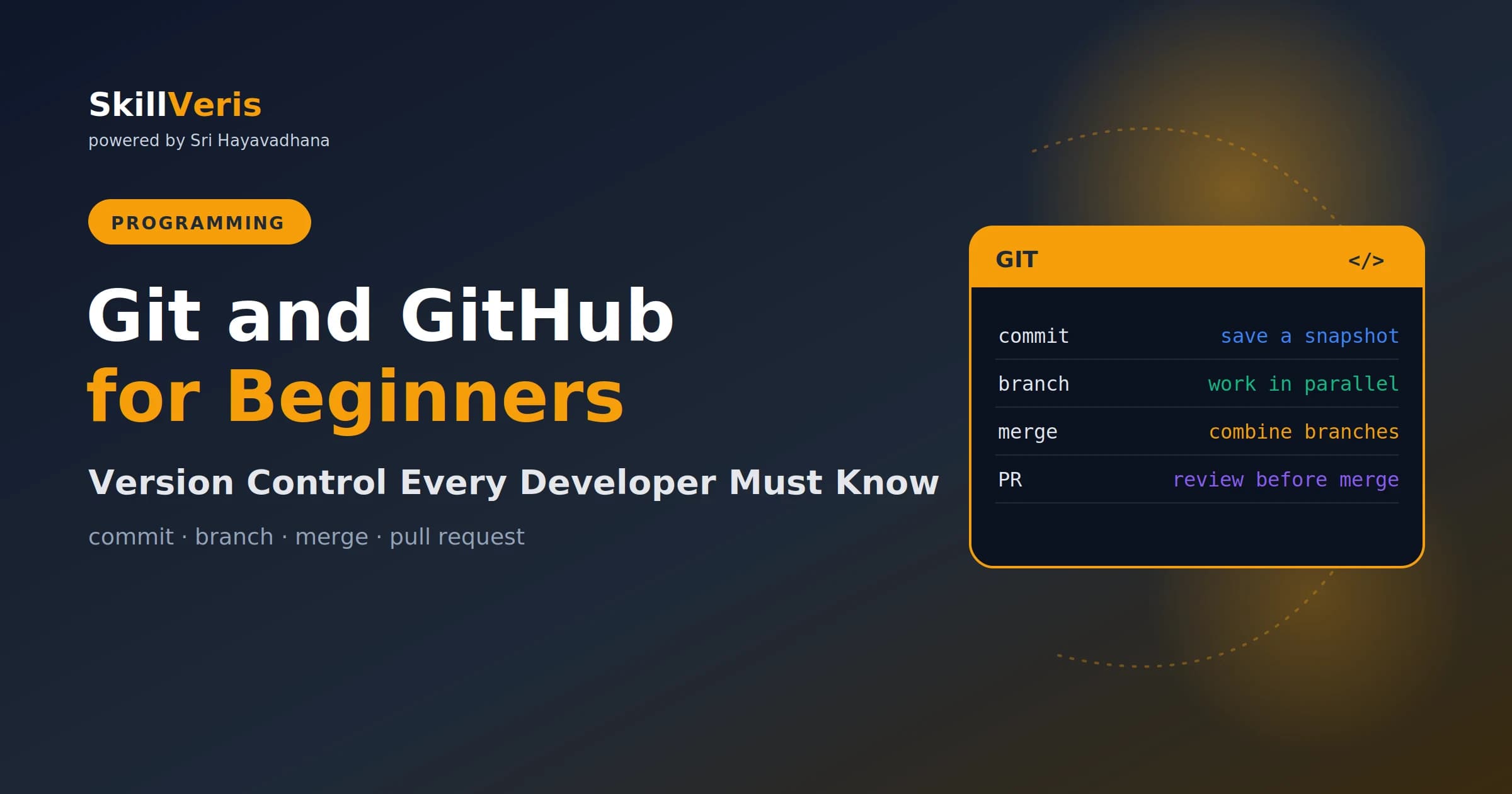
Git tracks every change to your code so you can collaborate without overwriting each other's work and revert to any previous state if something breaks.
In this guide, you'll learn:
- The daily workflow is six steps: pull, branch, code, commit, push, and open a pull request.
- Git is local version control while GitHub is cloud hosting that adds collaboration features on top.
- Saving in Git is a two-step process: stage your changes with git add, then save a snapshot with git commit.
- Always work in a branch and merge to main through a pull request, never committing directly to main on a team.
1What Is Git and Why Does It Matter
Git is a version control system — it records every change you make to your code, who made it, and when. That history is what makes safe collaboration and recovery possible.
Git is used by virtually every software team on the planet. Not knowing it is a practical barrier to employment as a developer.
- Revert to any previous working state if you break something.
- Work on new features without touching the stable codebase.
- Collaborate with other developers without overwriting each other's changes.
- See the entire history of a project, including why each change was made.
2Git vs GitHub
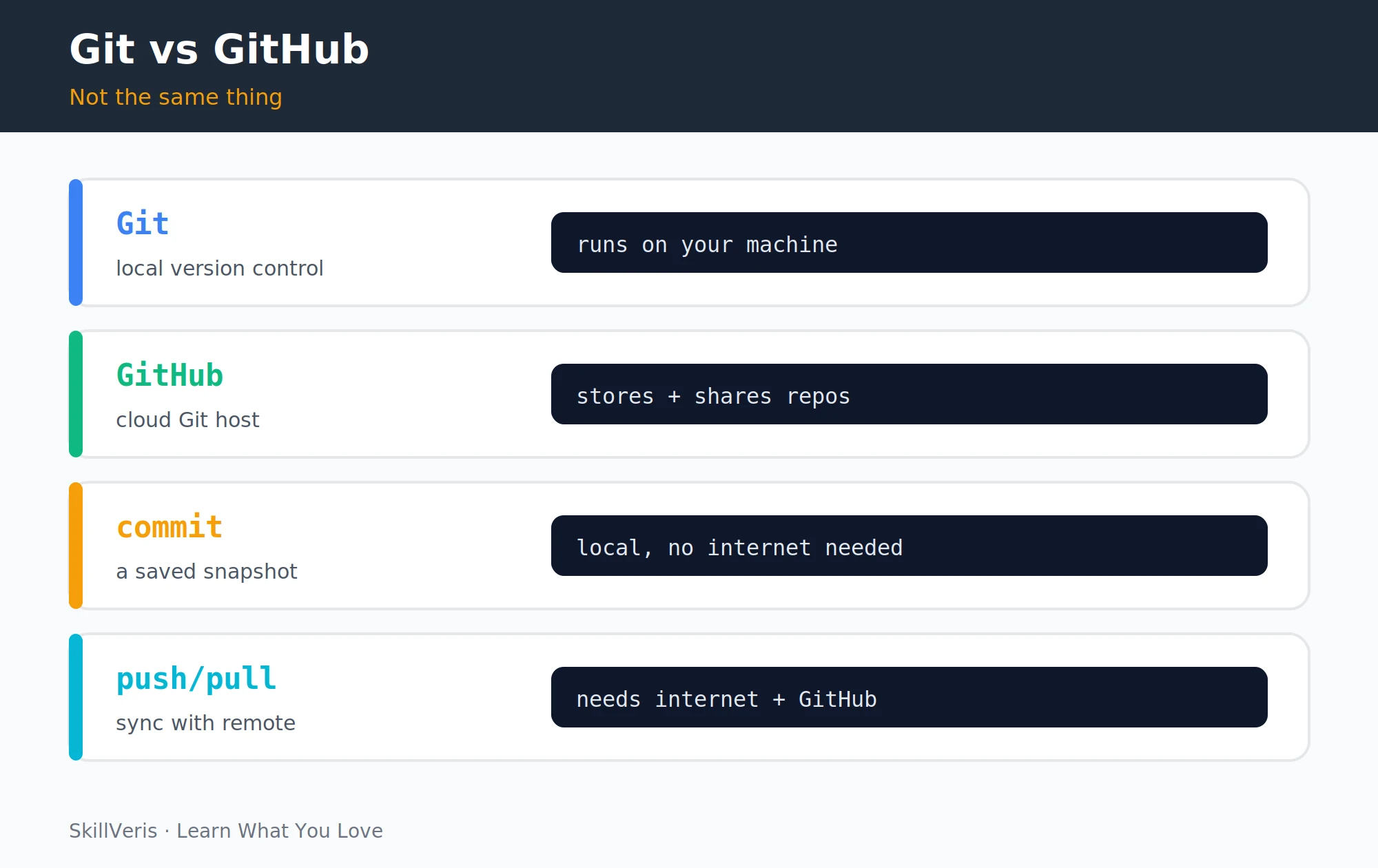
Git runs on your machine; GitHub stores your repos in the cloud. This distinction confuses almost every beginner, but it is the key to understanding the whole ecosystem.
Git without GitHub works fine for solo projects. GitHub (or GitLab, Bitbucket) is needed for teams and for sharing your work publicly.
- Git — the version control tool. Runs locally on your machine. No internet required to commit, branch, or view history.
- GitHub — a cloud hosting service for Git repositories. Adds collaboration features: pull requests, code review, issue tracking, CI/CD integration.
3Installing Git
Install Git with your platform's package manager, then verify the install and set your identity. Configuring your name and email is required before your first commit, since every commit is stamped with that author information.
Install commands
Pick the line that matches your operating system.
# macOS (Homebrew)
brew install git
# Ubuntu / Debian
sudo apt install git
# Windows: download Git for Windows from git-scm.com
Verify and set your identity
Run these once after installing.
git --version
git config --global user.name "Your Name"
git config --global user.email "[email protected]"4Core Concepts
A handful of terms appear in almost every Git command. Learning them once makes the rest of the workflow click into place.
- Repository (repo) — a folder that Git tracks. Contains your code plus a hidden .git folder with the full history.
- Commit — a saved snapshot of your tracked files at a specific moment. Each commit has a unique ID and a message.
- Branch — an independent line of development. Work on a feature in a branch without affecting the main codebase.
- Remote — a copy of the repository hosted elsewhere (GitHub). origin is the conventional name for your primary remote.
- HEAD — a pointer to the commit you're currently on, usually the tip of the current branch.
5Your First Repository
There are two ways to start working with Git: create a brand-new repository from scratch, or clone an existing one from GitHub. Use the option that matches whether the project already exists online.
Option A: start a new repo from scratch
Initialize a fresh repository in a new folder.
mkdir myproject && cd myproject
git init # creates the .git folder
echo "# My Project" > README.md
Option B: clone an existing repo from GitHub
Copy a remote repository to your machine.
git clone https://github.com/username/repo-name.git
cd repo-name6The Staging Area and Commits
Git has a two-step save process: first you stage changes to select what to include, then you commit them to save the snapshot. The staging area lets you craft a focused commit out of only the relevant changes.
💡Pro Tip
Write commit messages as imperative sentences: "Add login route" not "Added login route." Keep the summary under 72 characters, then optionally add a blank line and a longer explanation. Good messages make git history readable months later.
Stage and commit
The everyday save loop, from inspecting changes to viewing history.
# See what's changed
git status
# Stage specific files
git add README.md
git add src/app.py
# Stage all changed files
git add .
# Commit with a message
git commit -m "Add initial README and app skeleton"
# See commit history
git log --oneline7Branching
A branch is an isolated line of development where you can build a feature without disturbing main. The six-step daily workflow every developer uses revolves around creating and switching between these branches.
Never commit directly to main in a team environment. Always create a branch, work there, and merge via a pull request.
⚠️Watch Out
Before creating a new branch, always run git pull on main first. Starting a branch from an outdated main causes merge conflicts that were entirely avoidable.
Create and switch branches
Classic checkout syntax plus the modern switch commands.
# Create and switch to a new branch
git checkout -b feature/user-authentication
# List all branches (* marks current)
git branch
# Switch between branches
git checkout main
git checkout feature/user-authentication
# Modern syntax (Git 2.23+)
git switch main
git switch -c feature/new-feature # create + switch8Merging and Resolving Conflicts
Merging brings the work from a feature branch back into main. Conflicts happen when two branches changed the same line — they look scarier than they are, since you're just choosing which version to keep.
Merge and resolve
Merge the branch, then edit any conflict markers Git inserts and commit the resolution.
# Merge a feature branch into main
git checkout main
git merge feature/user-authentication
# If there are conflicts, Git marks them in the file:
####### <<<<<<< HEAD
####### const user = getCurrentUser();
####### =======
####### const user = getActiveUser();
####### >>>>>>> feature/user-authentication
# Edit the file to keep the correct version, then:
git add conflicted-file.js
git commit -m "Resolve merge conflict in user lookup"9Working with GitHub
To collaborate online, connect your local repository to a GitHub remote and push your branches up. After the initial push, syncing is a simple matter of push and pull.
Connect and sync with a remote
Wire up origin, push, and pull.
# Connect your local repo to a GitHub remote
git remote add origin https://github.com/yourusername/myproject.git
# Push your branch to GitHub for the first time
git push -u origin main
# After that, just:
git push
# Get the latest changes from GitHub
git pull
# See all remotes
git remote -v10Pull Requests
A Pull Request (PR) is a GitHub feature, not a Git command, that lets you propose merging one branch into another with code review before the merge happens. It is the standard way teams review and integrate changes.
Even for solo projects, practising the PR workflow with descriptive descriptions builds a good habit and creates a readable project history.
- Push your feature branch to GitHub: git push origin feature/my-feature.
- On GitHub, click "Compare & pull request."
- Write a description of what changed and why.
- Request a reviewer if you're on a team.
- After approval, click "Merge pull request."
- Delete the feature branch (GitHub offers a button; locally: git branch -d feature/my-feature).
11The Daily Workflow
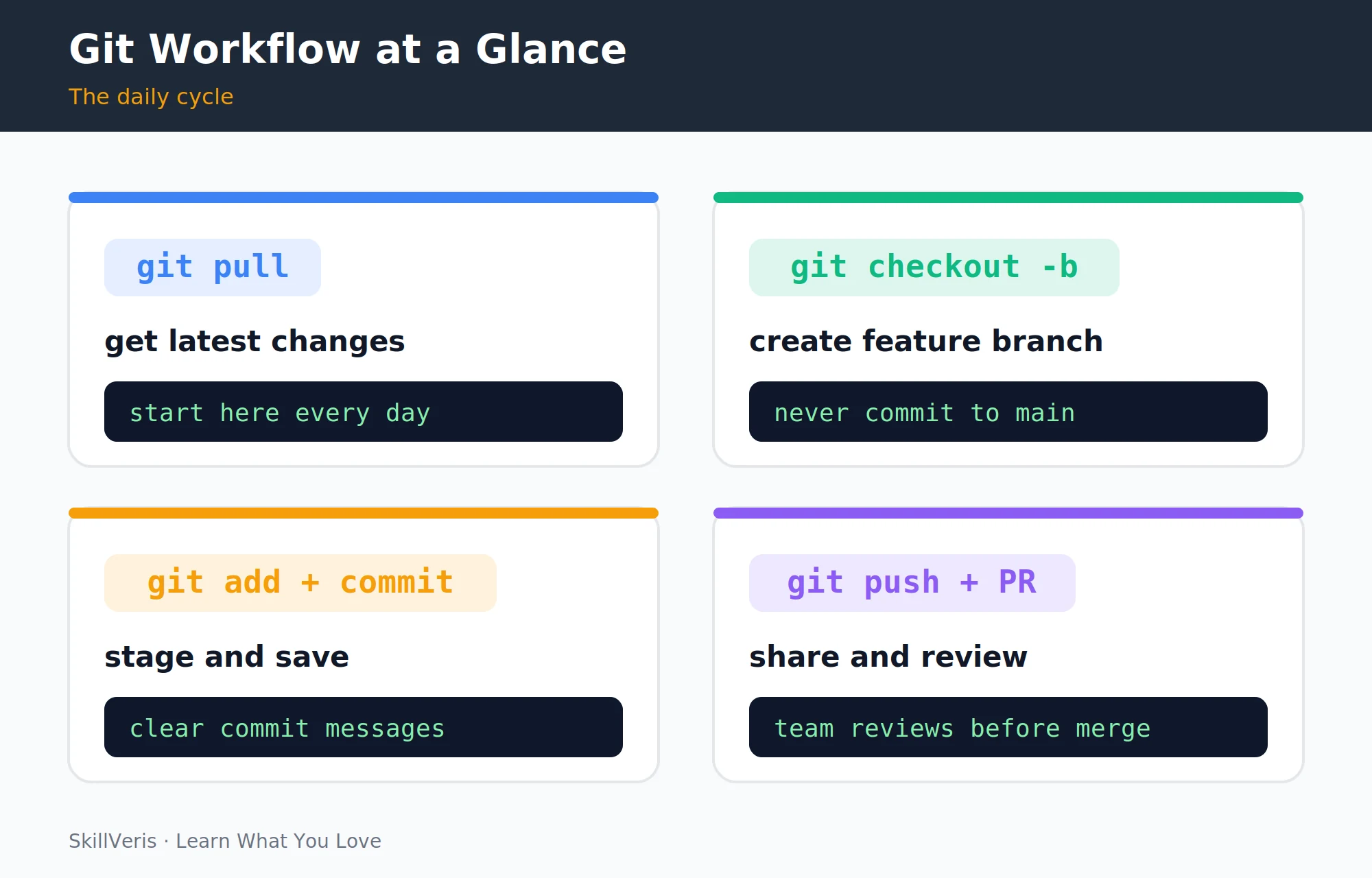
The full loop is six repeatable steps that cover syncing, isolating your work, saving it, and sharing it for review. Repeat the code, stage, and commit steps multiple times per feature, keeping commits small and focused on one logical change each.
- 1. Sync · git pull · Get latest changes from team
- 2. Branch · git switch -c feature/xyz · Isolated workspace for this task
- 3. Code · (write code) · Make your changes
- 4. Stage · git add . · Select files for commit
- 5. Commit · git commit -m "message" · Save snapshot with context
- 6. Push + PR · git push then open PR · Share for review and merge
12Key Takeaways
These points capture the mental model you need to use Git confidently from day one.
- Git = local version control. GitHub = cloud hosting for Git repos. They're separate tools.
- The commit flow: git add (stage) then git commit -m (save snapshot).
- Always work in branches; merge to main via pull requests.
- Write commit messages as imperative sentences describing what changed and why.
- Pull before you branch; push when ready for review.
13What to Learn Next
Apply Git in real projects to make these commands second nature. Each of these next steps puts the daily workflow to practical use.
- CI/CD Explained — Git pushes trigger automated pipelines.
- Build a Developer Portfolio — your GitHub profile is your portfolio.
- Full-Stack To-Do App Project — use Git throughout a complete project.
14Frequently Asked Questions
Q: What's the difference between git merge and git rebase?
A: Both integrate changes from one branch into another. merge creates a merge commit that preserves the full branch history, while rebase replays your commits on top of the target branch, creating a linear history. Start with merge and learn rebase once you understand branching well.
Q: How do I undo a commit?
A: git revert HEAD creates a new commit that undoes the last one and is safe for shared branches. git reset --soft HEAD~1 undoes the last commit but keeps the changes staged, which is good for local cleanup before pushing. Never use git reset --hard on commits already pushed to a shared branch.
Q: What should I put in .gitignore?
A: Files that should never be in version control: environment files (.env), dependency folders (node_modules/, venv/), build output (dist/, __pycache__/), and OS files (.DS_Store). Use gitignore.io to generate a .gitignore for your stack.
Q: Is it bad to have lots of commits?
A: No — many small, focused commits are better than one giant commit. Small commits are easier to review, easier to revert, and make the project history genuinely useful. "Squash and merge" in GitHub PRs lets you clean up messy commits into one before merging to main.
Related Reading
Get The Print Version
Download a PDF of this article for offline reading.
About the Publisher
SkillVeris Team
Engineering Team
Our engineering writers turn abstract code concepts into hands-on, project-driven learning experiences.
View all postsRelated Posts
Never miss an update
Get the latest tutorials and guides delivered to your inbox.
No spam. Unsubscribe anytime.