Python File I/O: Reading and Writing Files
SkillVeris Team
Engineering Team
Always open files with the with statement — it guarantees the file is closed even if an exception occurs.
In this guide, you'll learn:
- Use pathlib.Path for path manipulation instead of fragile string concatenation.
- Use the csv module for CSV files and the json module for JSON, never manual string parsing.
- Always specify encoding="utf-8" for text files, since the default varies by platform and causes bugs.
- Iterate line by line or in chunks for large files instead of loading everything into memory.
1File Handling in Python
File I/O (input/output) is how Python programs interact with the filesystem — reading configuration, writing logs, processing CSV data, and saving JSON responses.
Python makes file handling clean and safe with the open() function, context managers, and purpose-built modules for common formats.
2Opening and Closing Files
The with statement is the only correct way to open files in production Python code, because it closes the file automatically even if an exception occurs. Opening a file manually risks leaving it open if an error is raised before close() runs.
Always specify encoding="utf-8" for text files; the default varies by platform and causes bugs on Windows.
Correct vs incorrect opening
Prefer the context manager:
# ALWAYS use with statement (context manager)
# It closes the file automatically, even on exception
with open("data.txt", "r", encoding="utf-8") as f:
    content = f.read()
# file is closed here, automatically

# DON'T do this (file may not close on exception)
f = open("data.txt")
content = f.read()
f.close() # might not be called if exception occurs above3Reading Text Files
There are three common ways to read text: read() returns the whole file as a string, readlines() returns a list of lines, and iterating the file object yields one line at a time.
For large files such as logs or data dumps, always iterate line by line rather than calling f.read(), which loads the entire file into memory.
Three ways to read
Whole file, all lines, or line by line:
# Read entire file as a string
with open("notes.txt", encoding="utf-8") as f:
    content = f.read()

# Read all lines into a list
with open("notes.txt", encoding="utf-8") as f:
    lines = f.readlines()  # includes newline at end of each line
    lines = [l.rstrip() for l in lines]  # strip newlines

# Iterate line by line (memory-efficient for large files)
with open("large_log.txt", encoding="utf-8") as f:
    for line in f:
        if "ERROR" in line:
print(line.rstrip())4Writing and Appending
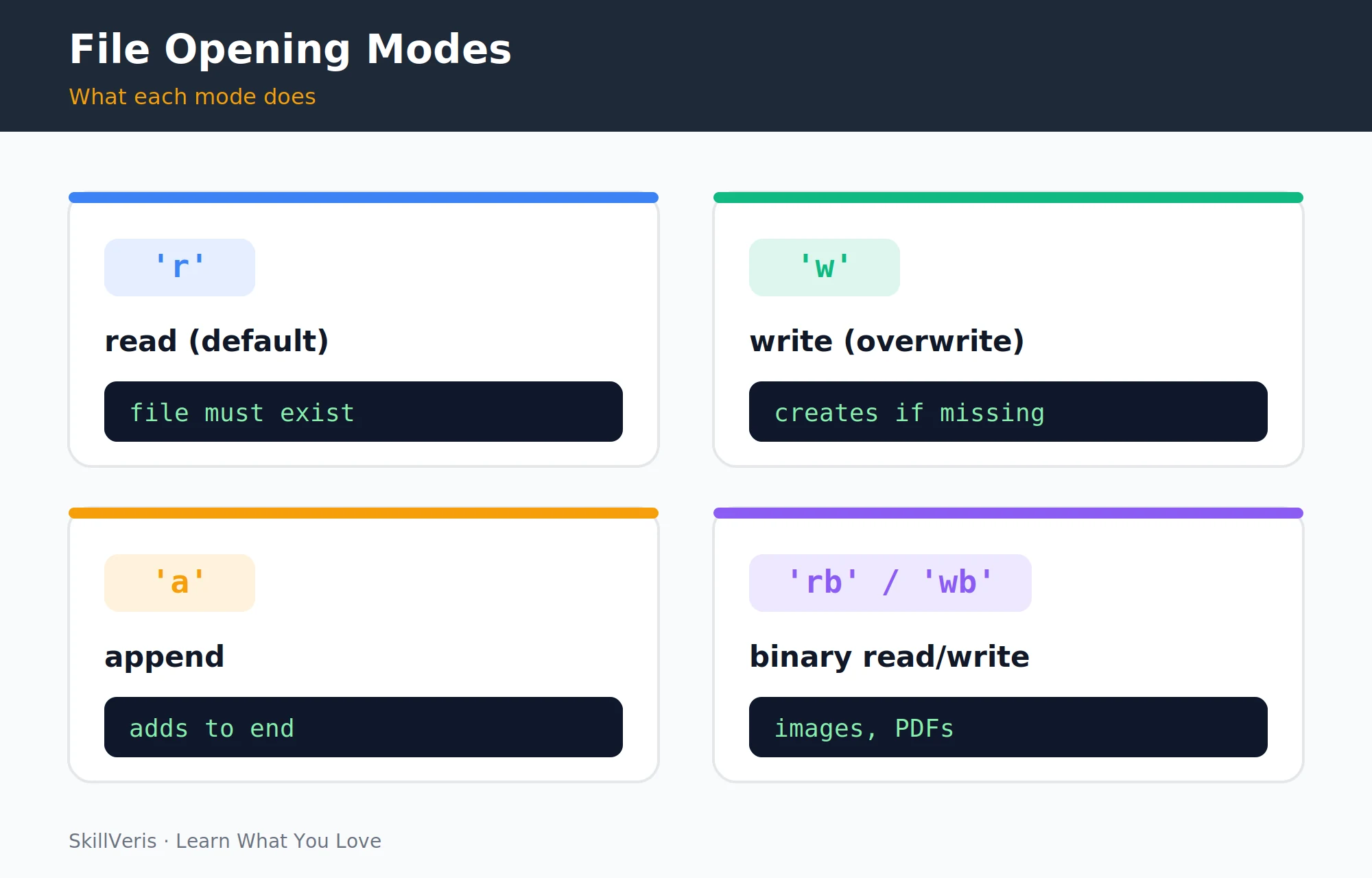
Mode "w" creates or overwrites a file, while mode "a" appends to an existing one. Use write() for single strings and writelines() to write many lines at once.
Choose the mode carefully before writing important data, since "w" replaces the entire file content without warning.
⚠️Watch Out
Mode "w" overwrites the entire file without warning. To add to an existing file, use "a" (append). To read and write, use "r+". Always confirm the mode before writing important data.
Write and append
Create, overwrite, and append:
# Write (creates or overwrites)
with open("output.txt", "w", encoding="utf-8") as f:
    f.write("Line 1\n")
    f.write("Line 2\n")

# Write multiple lines at once
lines = ["Line 1", "Line 2", "Line 3"]
with open("output.txt", "w", encoding="utf-8") as f:
    f.writelines(line + "\n" for line in lines)

# Append (adds to existing file)
with open("log.txt", "a", encoding="utf-8") as f:
f.write("2026-06-15 14:23: Application started\n")5Working with CSV Files
The csv module reads and writes comma-separated data correctly, handling quoting and embedded delimiters for you. DictReader gives each row as a dictionary keyed by column name, and DictWriter writes dictionaries back out.
Always pass newline="" when opening CSV files — the csv module handles newlines internally, and letting Python translate them causes double-newline problems on Windows.
Read and write CSV
Use DictReader and DictWriter:
import csv

# Reading a CSV
with open("students.csv", encoding="utf-8", newline="") as f:
    reader = csv.DictReader(f)  # each row is a dict
    students = list(reader)
print(students[0])  # {"name": "Alice", "score": "92", "grade": "A"}
top = [s for s in students if int(s["score"]) >= 90]

# Writing a CSV
results = [
    {"name": "Alice", "score": 92},
    {"name": "Bob", "score": 78},
]
with open("results.csv", "w", encoding="utf-8", newline="") as f:
    writer = csv.DictWriter(f, fieldnames=["name", "score"])
    writer.writeheader()
writer.writerows(results)6Working with JSON Files
The json module converts between Python objects and JSON. Use json.load() and json.dump() for files, and json.loads() and json.dumps() for strings.
Use indent=2 for human-readable output, and ensure_ascii=False to correctly handle Unicode characters — including Tamil and other scripts — in your JSON files.
Read and write JSON
Files and strings:
import json

# Read JSON file into Python dict/list
with open("config.json", encoding="utf-8") as f:
    config = json.load(f)  # file -> Python object

# Write Python dict to JSON file
data = {"name": "SkillVeris", "articles": 111, "active": True}
with open("output.json", "w", encoding="utf-8") as f:
    json.dump(data, f, indent=2, ensure_ascii=False)

# String conversion (not file I/O)
json_str = json.dumps(data)   # dict -> string
data2 = json.loads(json_str) # string -> dict7Binary Files
Binary mode ("rb" and "wb") reads and writes raw bytes rather than decoded text, which is essential for images, PDFs, and any non-text file. read() returns bytes, not a str.
For large binary files, copy in fixed-size chunks using the walrus operator so you never load the whole file into memory at once.
Binary read, write, and chunked copy
Work with bytes:
# Read binary (images, PDFs, any non-text file)
with open("image.png", "rb") as f:
    data = f.read()  # returns bytes, not str

# Write binary
with open("copy.png", "wb") as f:
    f.write(data)

# Copy a file in chunks (memory-efficient for large files)
CHUNK = 64 * 1024  # 64KB chunks
with open("source.mp4", "rb") as src, open("dest.mp4", "wb") as dst:
    while chunk := src.read(CHUNK):
dst.write(chunk)8pathlib: The Modern Approach
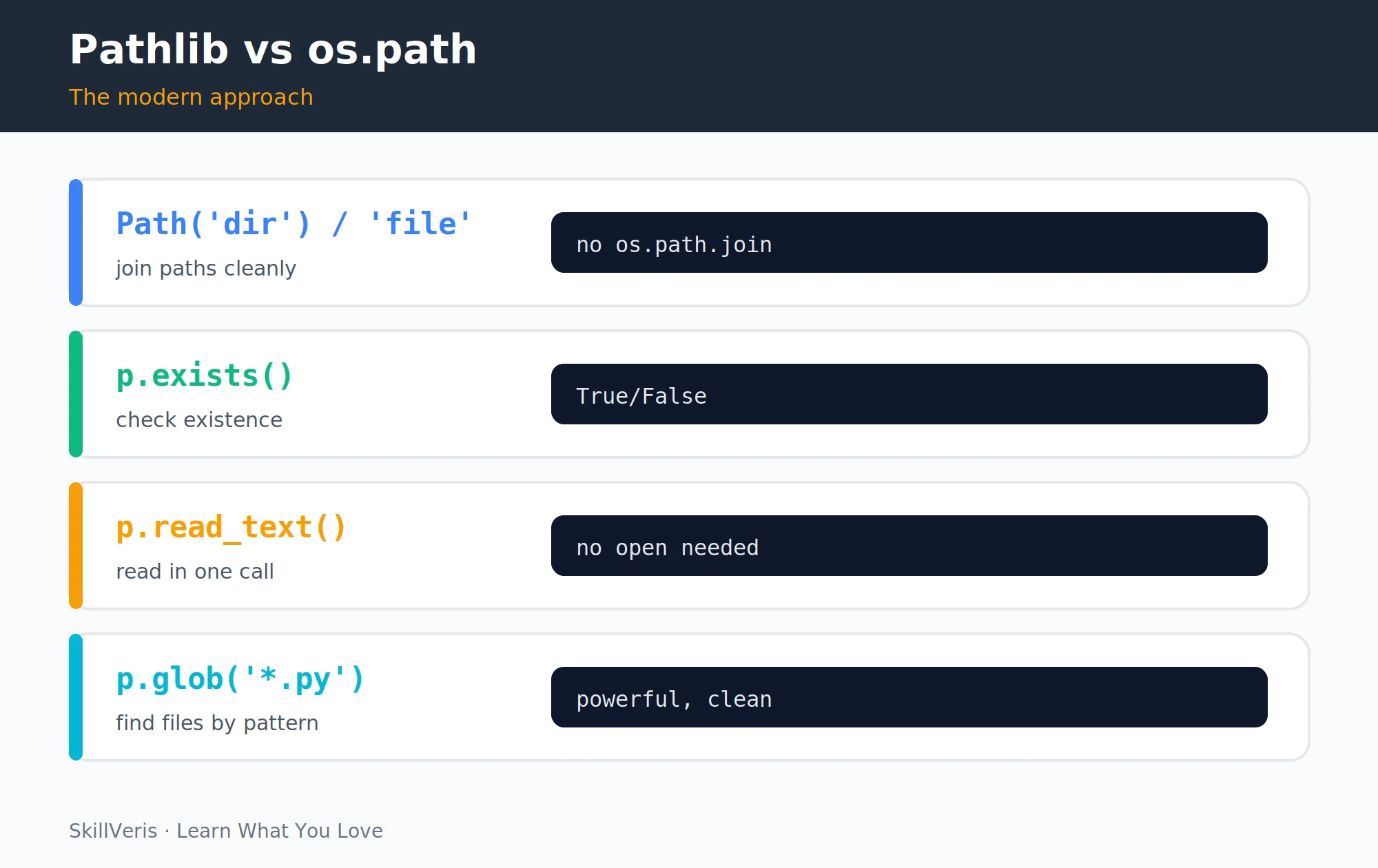
pathlib.Path replaces os.path with a clean, object-oriented API. Build paths with the / operator, inspect properties like name and suffix, and read or write text without a separate open() call.
pathlib was added in Python 3.4 and is now the preferred way to work with file paths, unifying the fragmented os.path, os, and glob functions into one consistent API.
Paths the modern way
Build, inspect, read, and create:
from pathlib import Path

# Build paths with / operator (works on Windows and Unix)
base = Path("data")
logs = base / "logs" / "app.log"

# File properties
print(logs.name)    # "app.log"
print(logs.stem)    # "app"
print(logs.suffix)  # ".log"
print(logs.parent)  # data/logs
print(logs.exists())  # True/False

# Read and write without open()
content = Path("notes.txt").read_text(encoding="utf-8")
Path("output.txt").write_text("Hello", encoding="utf-8")

# Create directories
Path("data/reports/2026").mkdir(parents=True, exist_ok=True)

# Find files by pattern
py_files = list(Path("src").glob("**/*.py")) # all .py files recursively9Walking Directory Trees
To process every file in a directory tree, use Path.glob() with a recursive pattern, which returns matching paths as Path objects. For fine-grained control, os.walk() still gives you the root, subdirectories, and files at each level.
Both approaches work; pathlib's glob is more concise, while os.walk is handy when you need to inspect or prune directories as you go.
Recursive search
glob and os.walk:
from pathlib import Path

# Find all CSV files in a directory tree
data_dir = Path("data")
csv_files = list(data_dir.glob("**/*.csv"))

# Process each one
for csv_path in csv_files:
    print(f"Processing {csv_path.name}...")

# With os.walk (still useful for fine-grained control)
import os
for root, dirs, files in os.walk("data"):
    for filename in files:
        if filename.endswith(".log"):
            full_path = os.path.join(root, filename)
print(full_path)10Temporary Files
The tempfile module creates temporary files and directories that clean themselves up. NamedTemporaryFile gives you a real file path that's deleted on close, and TemporaryDirectory removes its whole tree on exit.
Temporary files are essential for tests (such as pytest's tmp_path), intermediate processing, and any case where you need a file but don't want it to persist.
Temp file and directory
Auto-cleaned scratch space:
import tempfile
from pathlib import Path

# Create a temporary file (auto-deleted when closed)
with tempfile.NamedTemporaryFile(
    mode="w", suffix=".txt", encoding="utf-8", delete=True
) as tmp:
    tmp.write("temporary content")
    print(tmp.name)  # e.g. /tmp/tmpabc123.txt
# file is deleted here

# Create a temporary directory
with tempfile.TemporaryDirectory() as tmpdir:
    tmp_path = Path(tmpdir) / "test.csv"
    tmp_path.write_text("data")
# entire directory deleted here11Best Practices and Common Mistakes
A handful of habits prevent most file-handling bugs, from forgotten encodings to gigabyte files loaded into memory all at once.
- Always use with — never open files without a context manager.
- Always specify encoding="utf-8" for all text files to avoid platform-specific surprises.
- Use pathlib for path manipulation: Path("dir") / "file.txt" instead of os.path.join("dir", "file.txt").
- Use the right module — csv for CSV files, json for JSON; never parse structured formats with manual string splitting.
- Stream large files — iterate line by line or in chunks rather than loading gigabyte files with f.read().
- Handle file errors — wrap file operations in try/except for FileNotFoundError, PermissionError, and IOError.
12Key Takeaways
Safe, idiomatic file I/O comes down to a few reliable defaults that work across platforms and file sizes.
- Use with open(...) as f: always — it guarantees file closure on any exit path.
- Specify encoding="utf-8" for all text files; use "rb"/"wb" for binary.
- Use the csv and json modules for structured formats; use pathlib.Path for path operations.
- Iterate line by line for large files; use Path.glob() to find files by pattern.
13What to Learn Next
File I/O is the foundation for a lot of real-world Python; these topics build directly on it.
- Regular Expressions in Python — parse structured text from files with regex.
- Pandas for Beginners — read CSV and Excel files into DataFrames with one line.
- Python Error Handling — handle missing files and permission errors gracefully.
14Frequently Asked Questions
What is the difference between read(), readline(), and readlines()? read() returns the entire file as one string, readline() returns one line at a time, and readlines() returns all lines as a list. For most cases, iterating over the file object directly is the most memory-efficient approach.
Why do I get UnicodeDecodeError when reading files? The file was saved in a different encoding than the one you're reading it with, often Windows-1252 versus UTF-8. Add encoding="utf-8", encoding="latin-1", or encoding="cp1252" depending on the file's origin. When the encoding is unknown, try errors="replace" to substitute unreadable characters rather than crashing.
Should I use os.path or pathlib? Prefer pathlib for all new code — it's more readable and object-oriented. os.path is still useful for backwards compatibility with older libraries or when you need os.walk(). Both are valid, and most modern Python code uses pathlib.
How do I safely write to a file without losing existing data if the program crashes? Write to a temporary file first, then rename it over the original. File rename is an atomic operation on most operating systems, so the target ends up with either the old data or the new data — never a partially written, corrupted state.
Related Reading
Get The Print Version
Download a PDF of this article for offline reading.
About the Publisher
SkillVeris Team
Engineering Team
Our engineering writers turn abstract code concepts into hands-on, project-driven learning experiences.
View all postsRelated Posts
Never miss an update
Get the latest tutorials and guides delivered to your inbox.
No spam. Unsubscribe anytime.